你的提示詞
將括號內的文字換成你的內容;選填項目可以省略。
/launch-ui-marquee
Product name = 〔Product name — 最多 24 個字元〕
Website = 〔Website — 最多 30 個字元 — 選填〕
Headline = 〔Headline — 最多 44 個字元〕
Region 1 name = 〔Region 1 name — 最多 24 個字元〕
Region 2 name = 〔Region 2 name — 最多 24 個字元〕
Region 3 name = 〔Region 3 name — 最多 24 個字元〕
顏色 = 〔顏色 — graphite (dark neutral, lime) / midnight (dark violet-blue) / porcelain (light, cobalt) — 選填〕
品牌色 = 〔品牌色 — 選填〕
Video shape = 〔Video shape — landscape 16:9 (YouTube, screens) / vertical 9:16 (Reels, Shorts, TikTok) / square 1:1 / 4:5 (Instagram feed) — 選填〕
Product picture = 〔Product picture〕
影片解析度 = 〔影片解析度 — 1080p / 4K — 選填〕
不知道怎麼填?可以說:先做一個範例給我看
範例
/launch-ui-marquee
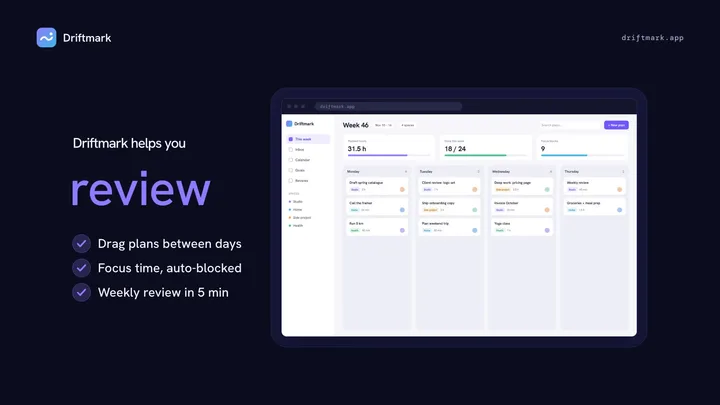
Product name = Driftmark
Website = driftmark.app
Headline = Everything for your week, [[in one place]].
Region 1 name = Your week at a glance
Region 2 name = Drag plans between days
Region 3 name = Spaces for every project
顏色 = midnight-aurora
品牌色 = #1E3A8A
Video shape = 16:9
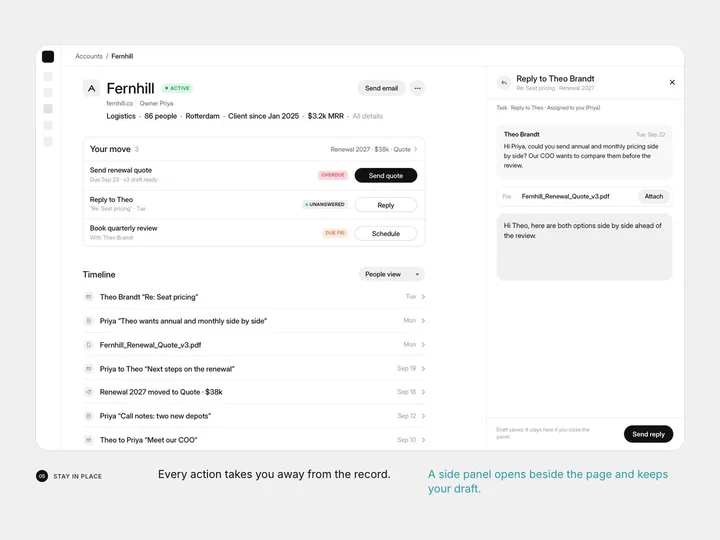
Product picture = the sample screenshot in the pack
影片解析度 = 4K
選取框介面導覽發表
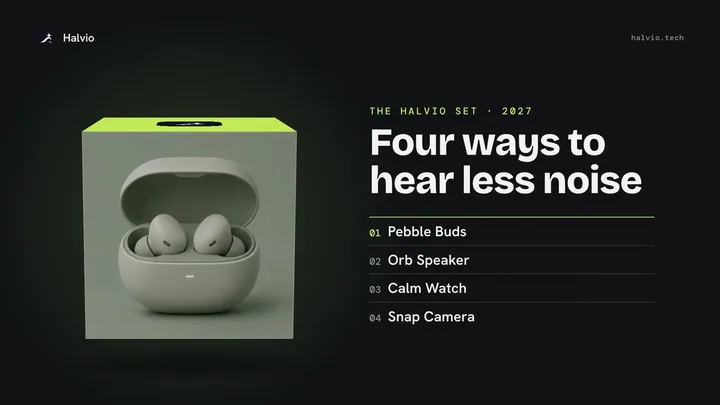
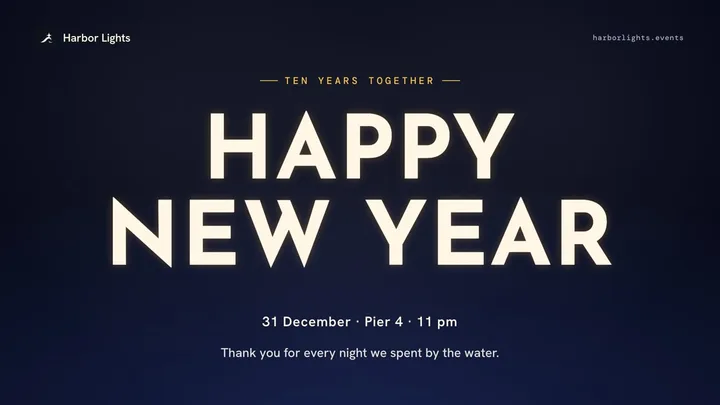
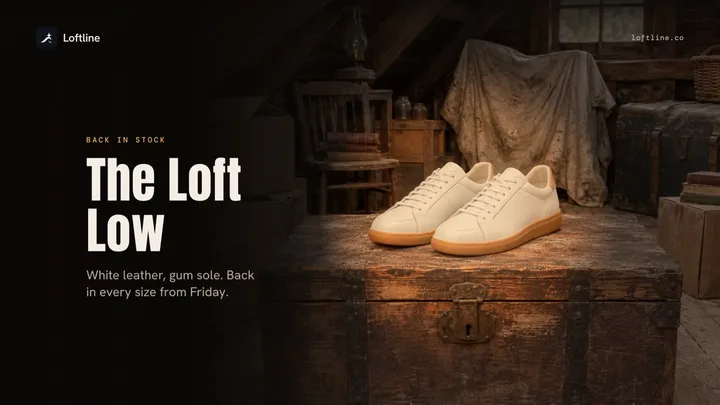
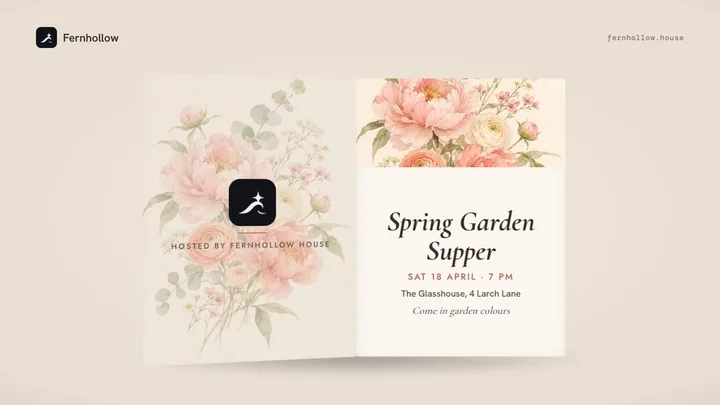
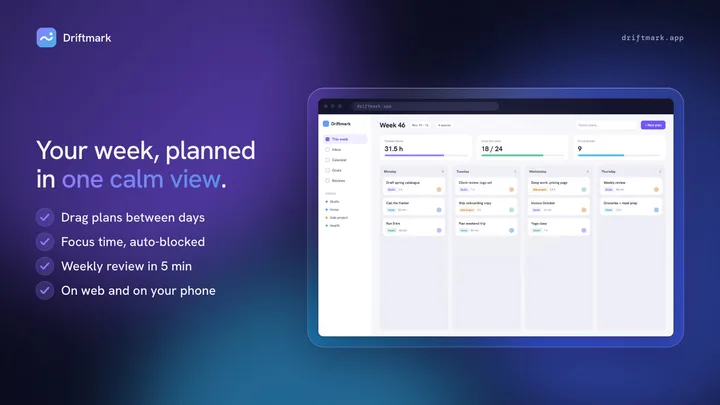
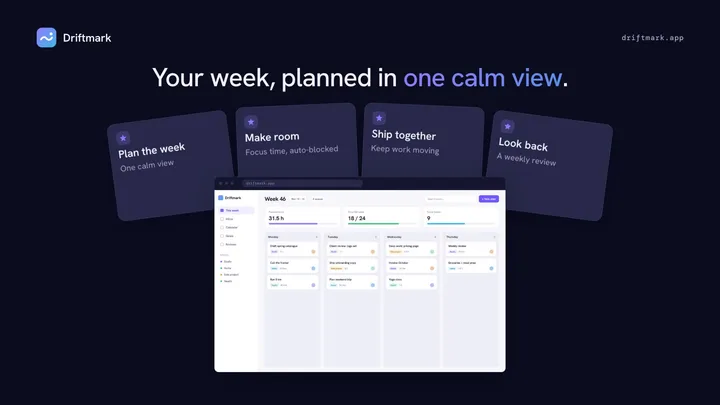
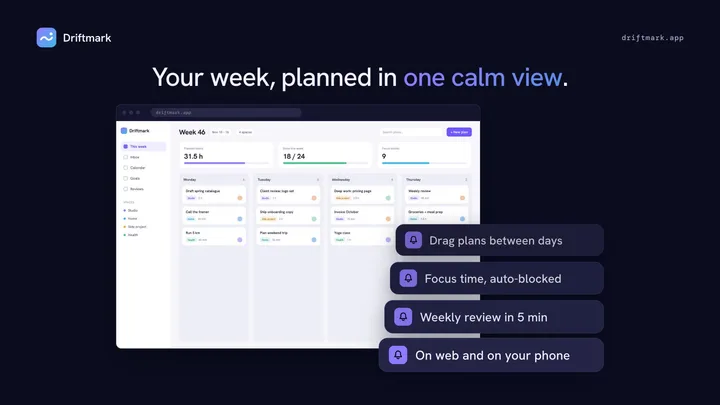
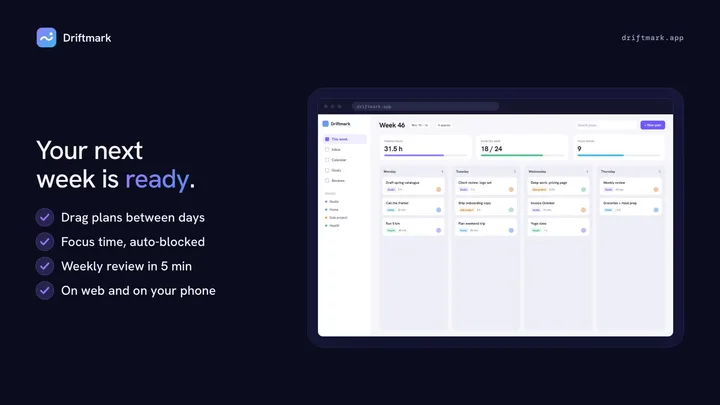
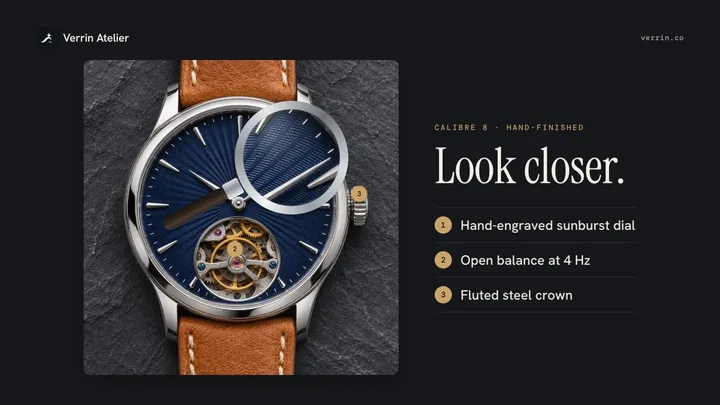
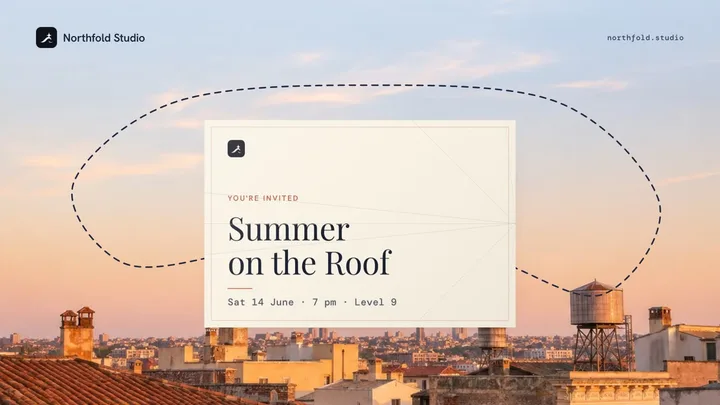
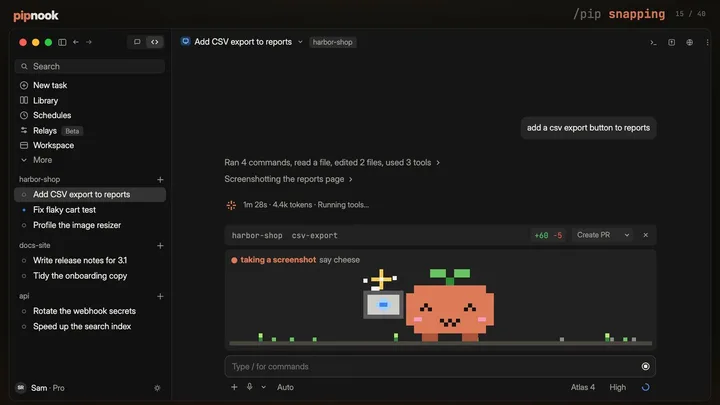
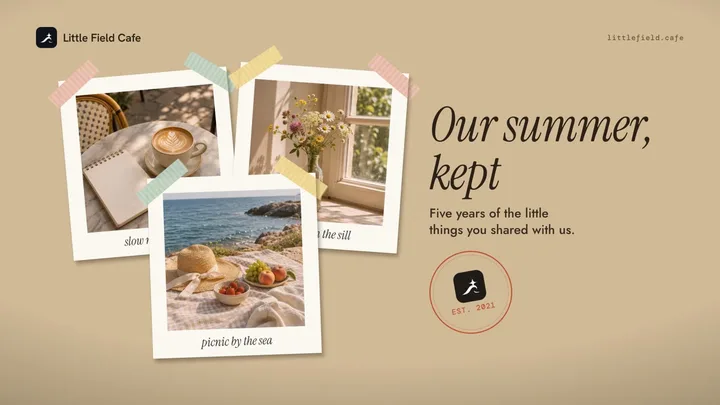
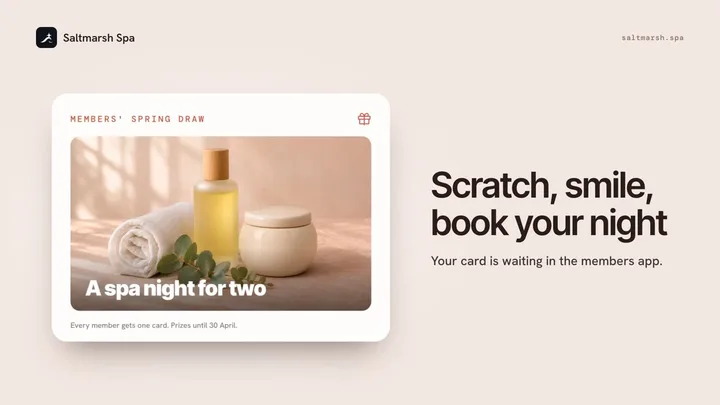
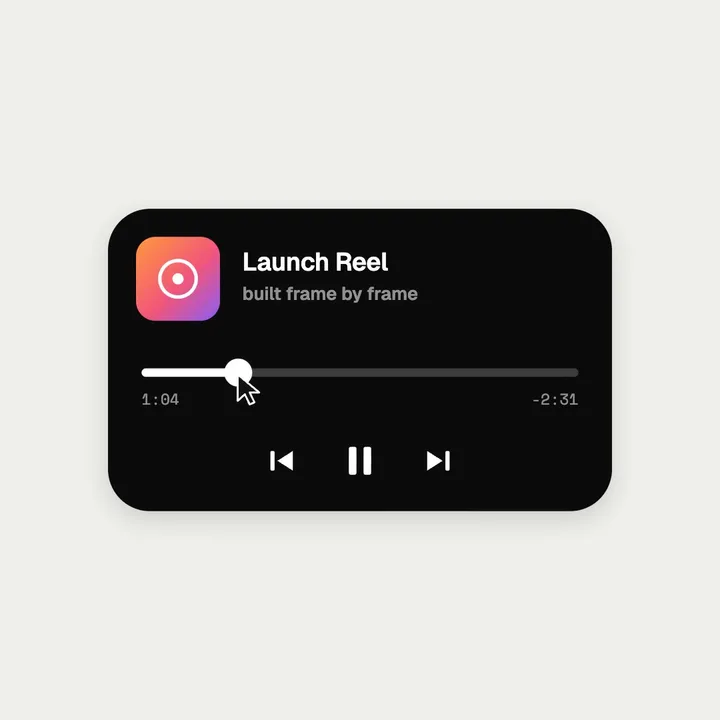
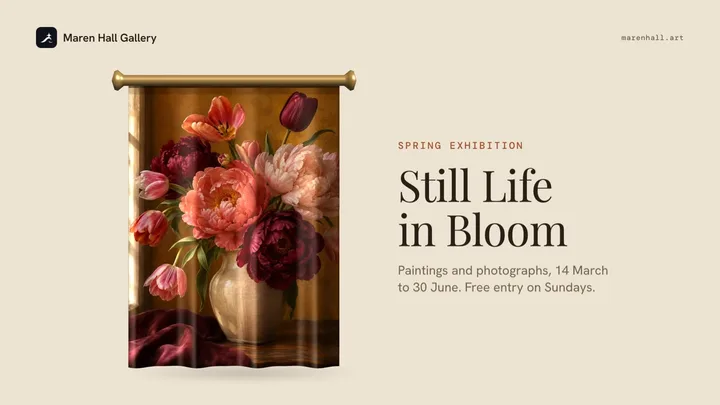
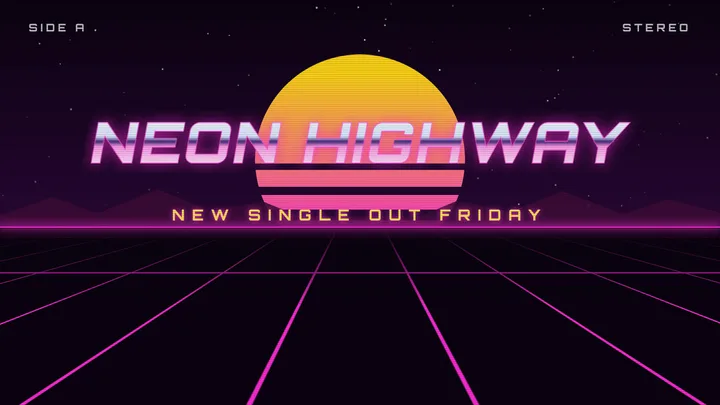
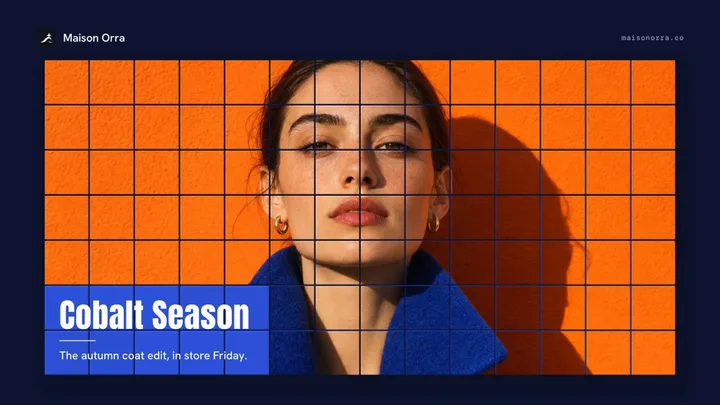
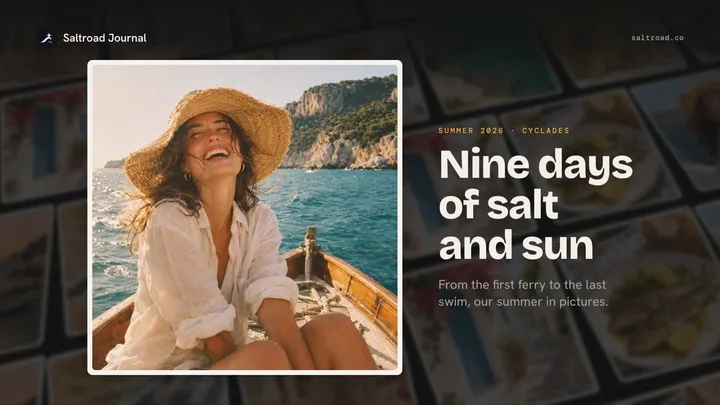
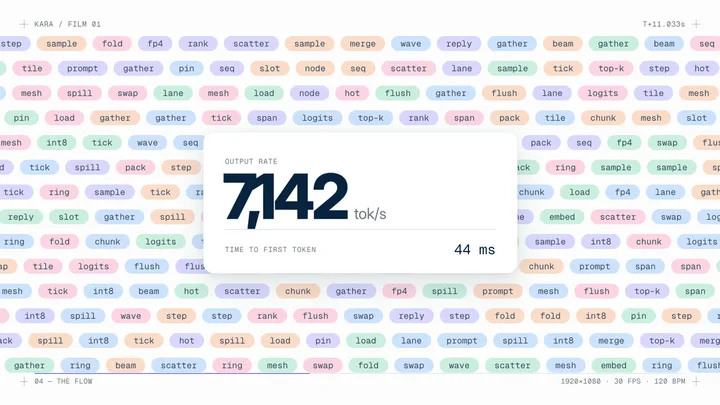
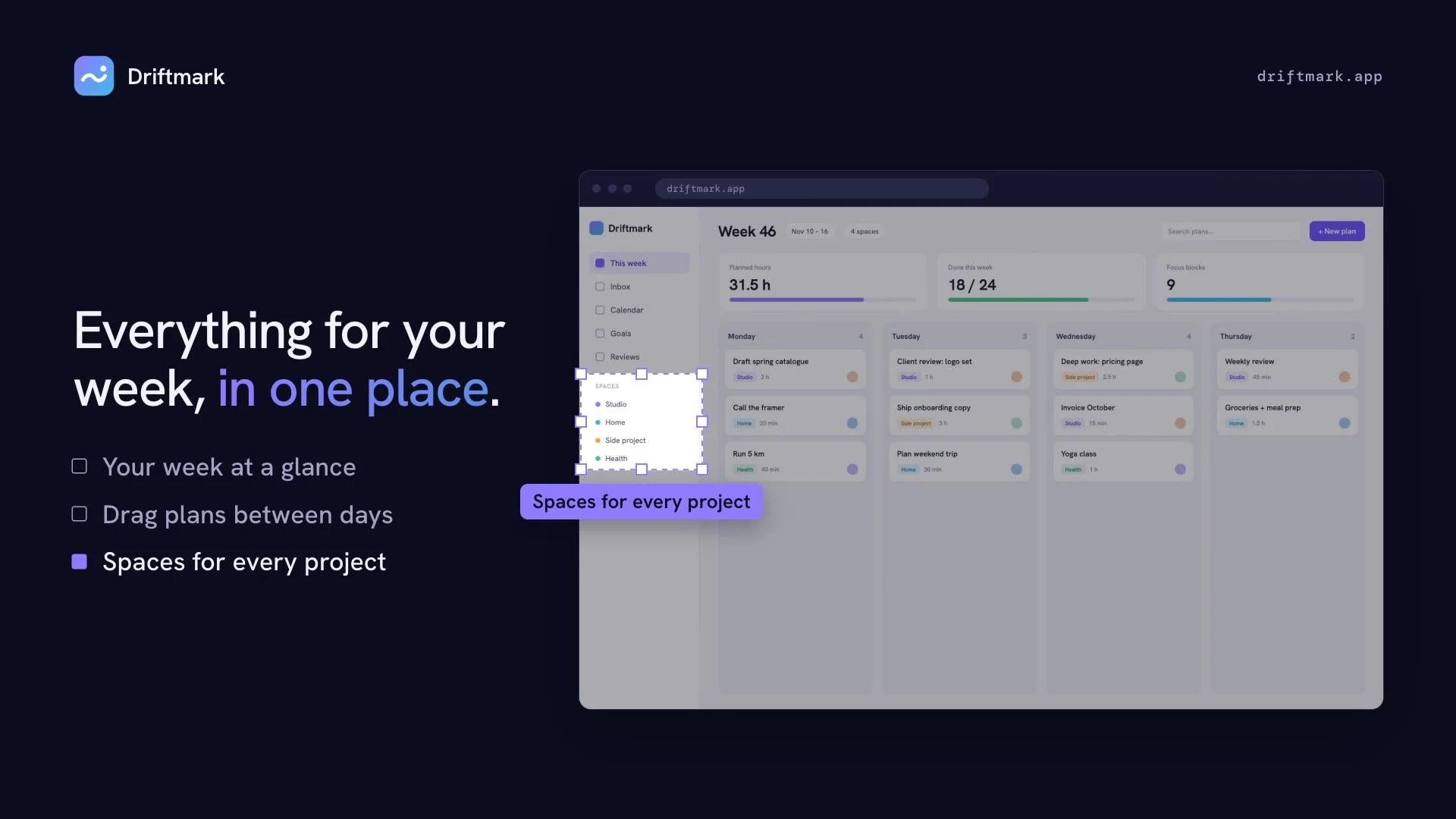
發表片裡「看這裡、再看這裡」的 8 秒介面導覽:螞蟻線選框依序框住截圖的三個區域,其餘畫面微暗,框下標籤換成對應的功能名,圖例同步點亮。三個區域用比例矩形指定,換上 Logo、產品名與網址,本機輸出 16:9、9:16、1:1、4:5 的 4K 影片。
運作流程
- 安裝技能 · 安裝指南
- 執行你的需求 ·
/launch-ui-marquee - 檢查成果
先閱讀 SKILL.md 的流程,再使用下方隨包提供的指令。
node -vnode scripts/check-setup.mjsnode scripts/create.mjs --out ./demonode scripts/render.mjs ./demo --output ./demo.mp4node scripts/create.mjs --out ./my-scene --data content.json --product ./shot.png --logo ./logo.svg --config regions.json --aspect 16:9 --theme midnight-auroranode scripts/render.mjs ./my-scene --check
工作目錄
references/defaults.jsonreferences/fill-in.jsonreferences/layout-rules.jsonreferences/project/index.htmlscripts/check-setup.mjsscripts/create.mjsscripts/hyperframes.mjsscripts/layout-guard.mjs
你會得到
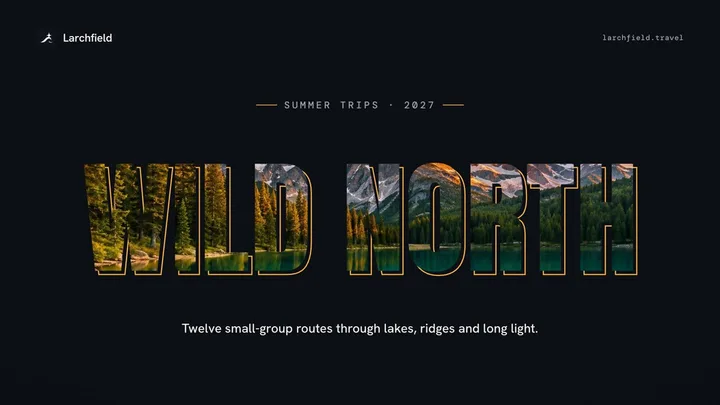
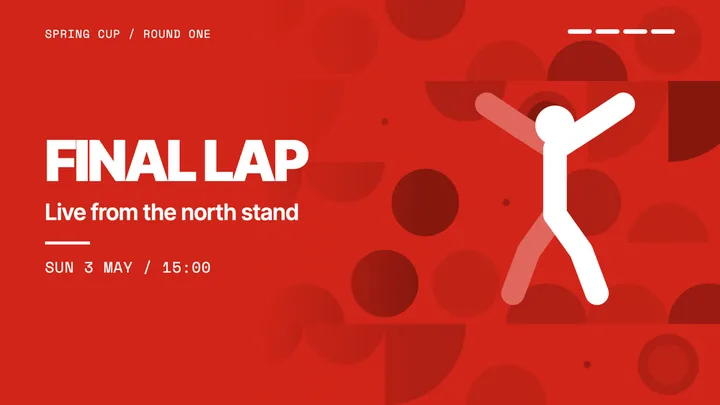
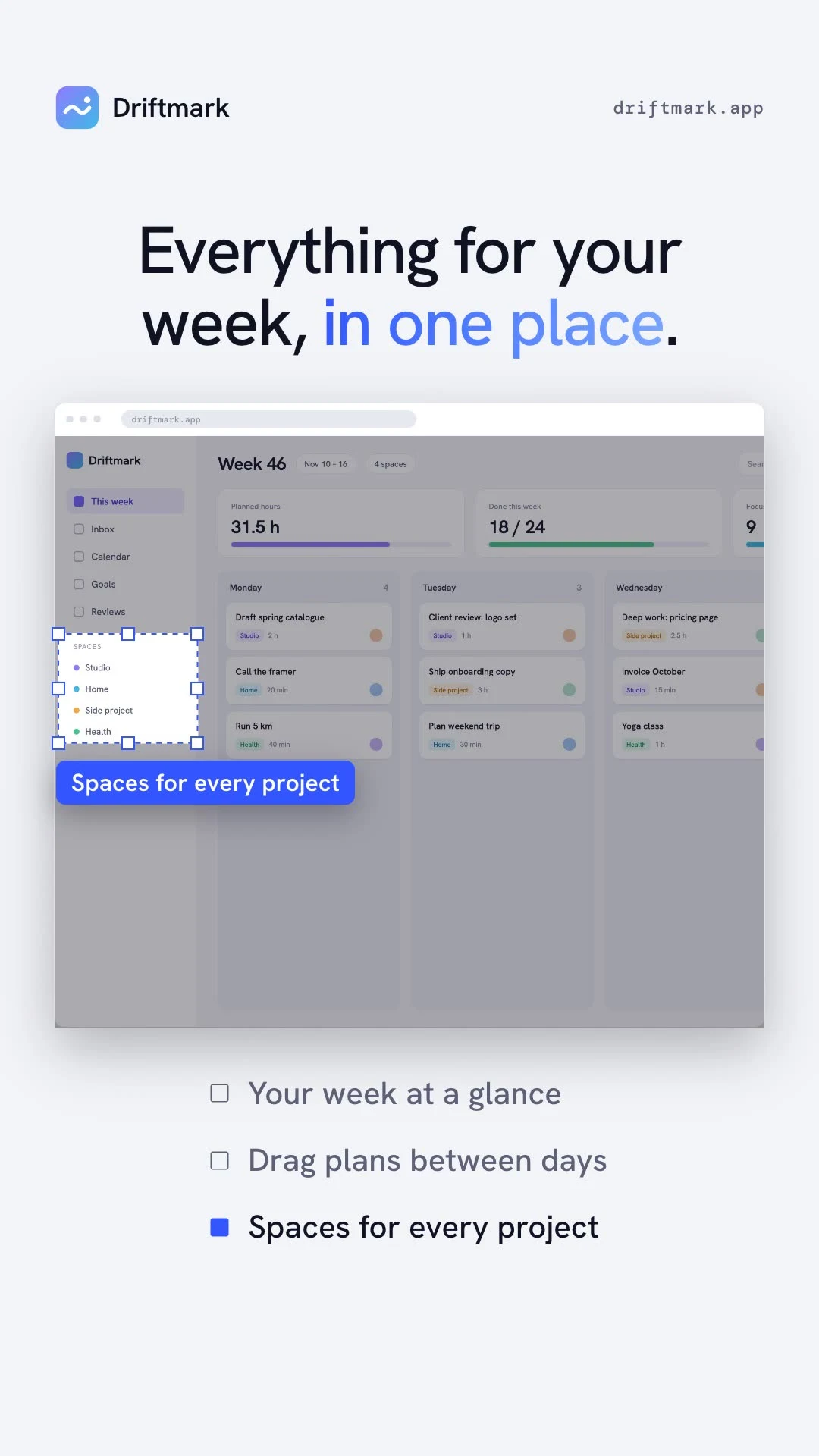
- 16:9、9:16、1:1和4:5的可編輯的8秒UI遊覽;命名槽中的標題和三個功能名稱
- 您設定為自己圖片的一部分的三個區域(效果設置,--config),透過瀏覽器、手機或剪切框映射
- 預設 4K MP4 (或 1080p)、任何時刻的劇照、三個調色板加上任何品牌顏色、文字適合和佈局檢查以及視覺審查清單
執行需求
- 必要 · Node.js 22 或更新版本
- 必要 · Google Chrome、Chromium 或 Microsoft Edge
- 必要 · FFmpeg
- 選用 · HyperFrames CLI (透過 npx)
使用建議
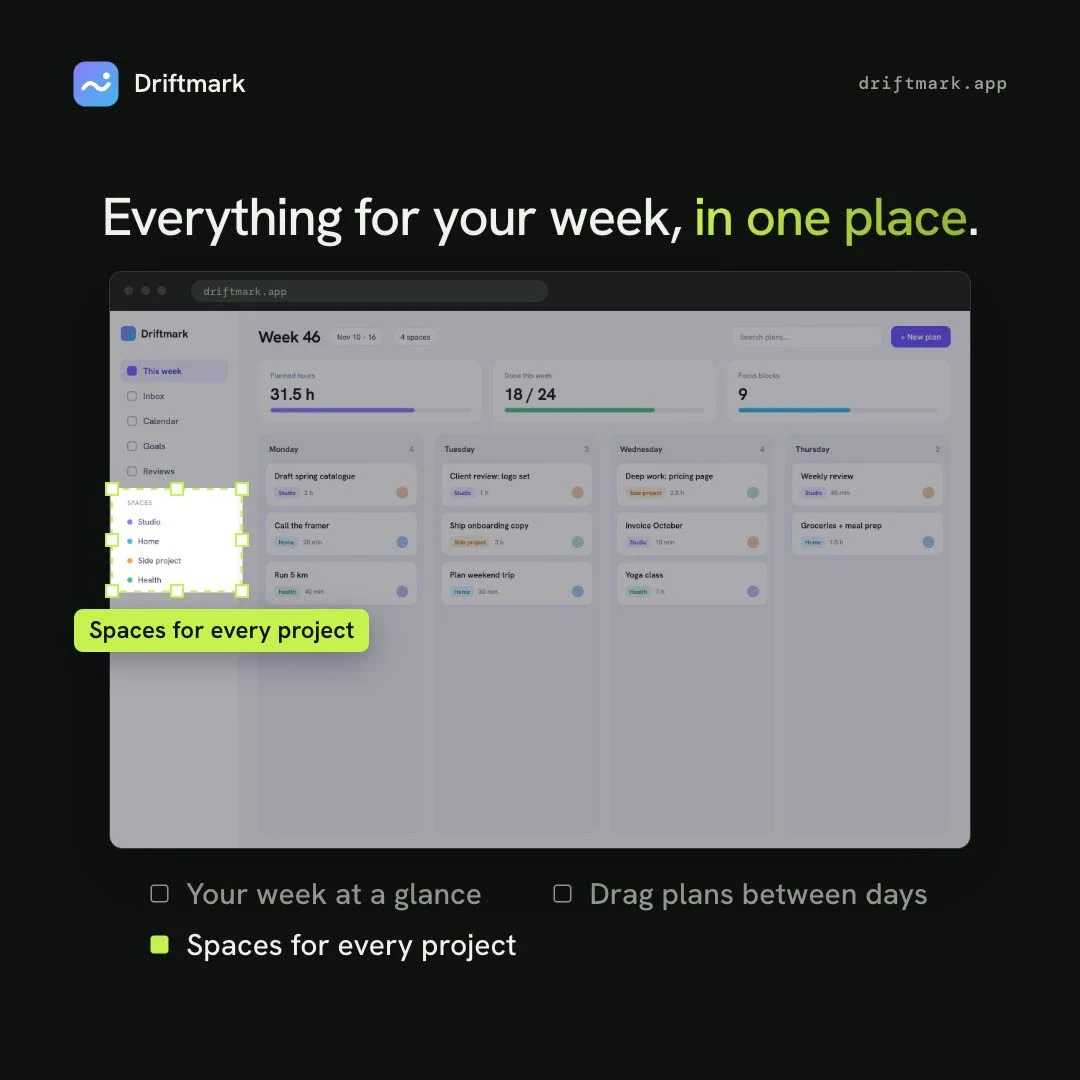
設計軟體式選框依序框住截圖的三個區域,框下標籤說出功能名。
9:16進行同樣的遊覽
將第二個方塊移至右側發票表
開始之前
| 你需要提供 |
|
|---|---|
| 相依項目 |
|
| 外部費用 | 無外部服務費用 |
| 最近更新 | v1.0.2 · |
功能範圍以隨包提供的流程為準。